

Landscape Planner Pro
User Manual
Introduction
Landscape Planner Pro is an app which collects and compiles information from numerous web sources and applies intelligent thinking and analysis and presents lots of really useful and applicable information to the hobbyist, recreational and professional landscape photographer. This allows the user to plan ahead, up to six days, to search locations and find the best opportunities and the best times to shoot to achieve the most successful resulting images.
LPP automatically knows the best environmental conditions in which a landscape photographer might want to shoot a certain subject. So, LPP makes recommendations about which aspect of landscape photography will most likely produce a successful result on the searched date and time of day.
All the important information is shown in several ‘panels’ splitting valuable information into several important but quite different sections. The panels follow below the search panel, date and time input areas and map.
Location Search
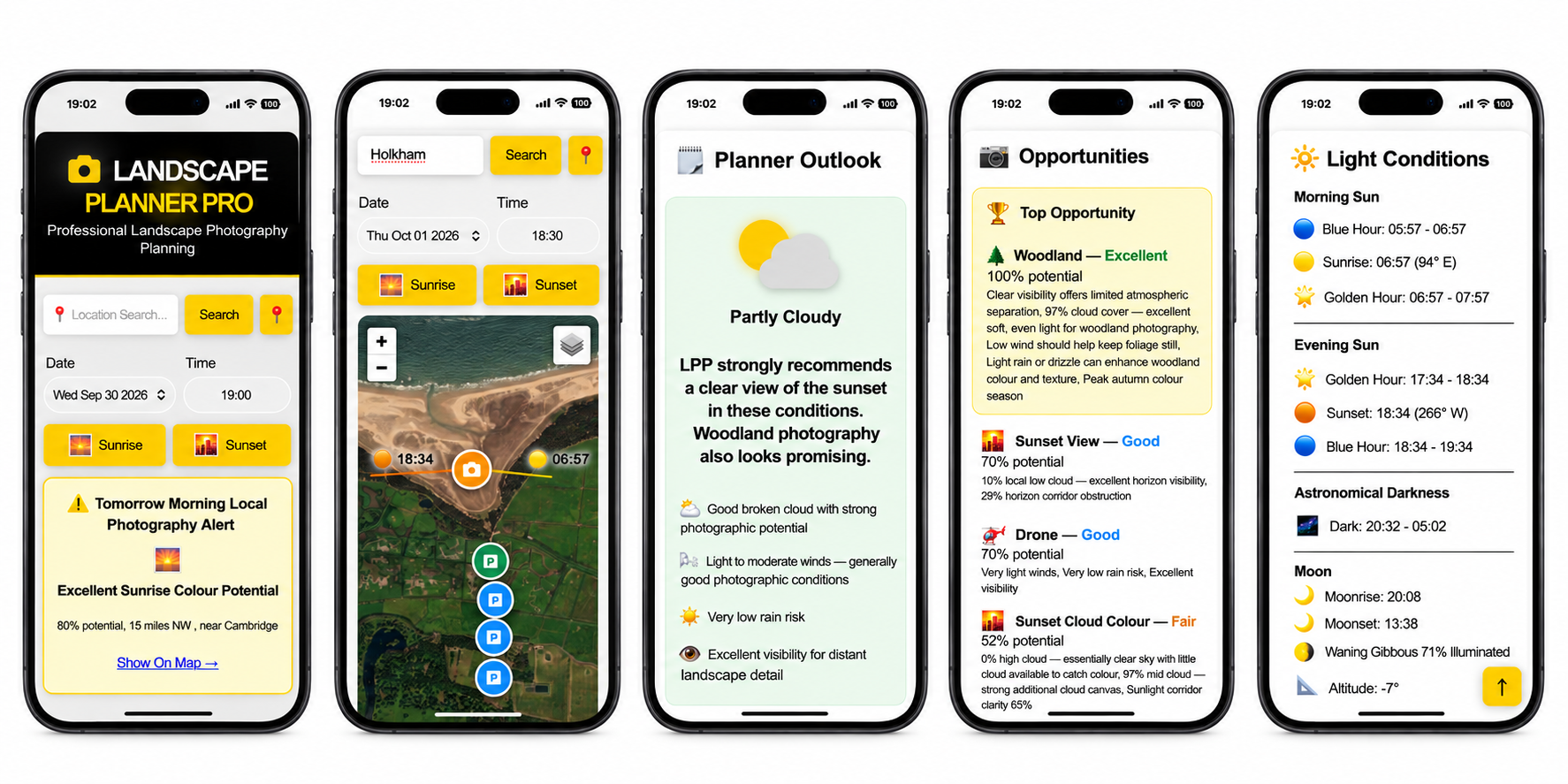
Type in to the search box your location for where you want LPP to provide you with planning details for your landscape photography shoot. A vast number of worldwide locations and places of interest are covered so chances are very high that your particular location will be found. Places such as towns, villages, harbours, windmills and lighthouses are included as part of the map data.
Current Location Button
For a faster and more accurate response, press the 📍button to search your current location, ie. the location in which your device is located.
Time and Date Search
Adjacent to the location search box you may select the time and date for your search. By default, the current date and time are shown, rounded to the nearest 30 minutes. LPP is a short-term planning app and as such today’s date and up to 6 days ahead are shown as options.
Sunrise and Sunset Buttons
LPP is aware of the sunrise and sunset times of your location. Pressing the sunrise button and sunset button will always conveniently jump to the time of the next sunrise or sunset for that location, one or both of which may be the following day. Note that if a date is selected and then the sunrise or sunset button is pressed, for speed and convenience, LPP is designed to show the next sunrise or sunset - not the sunrise or sunset for the date selected.
Weather Alerts
The intelligence built into LPP shows a panel above the map when, and only when, the weather forecast for the following morning gives a high probability of colourful sunrise, fog or frost within a circle of 40 miles radius around the device’s current location. This is intended to provide the landscape photographer with the most basic, most appropriate information, intended to suggest whether an early morning shoot the following day is likely to produce excellent results.
When the panel appears, the information provided will suggest the best conditions in a given direction at a given range in miles. The name of the nearest place will also be shown, eg. 18 miles NE near Norwich. A link to show the location on the map will highlight the area on the map with a red circle.
Map
The map can be configured to display a geographical map, a contour map or a satellite view. When a location is searched, the map flys to and zooms in on that location and marks it with an orange camera symbol.
A yellow line shows the bearing and time of sunrise, an orange line shows the bearing and time of sunset. These lines are fixed to the date selected and do not move regardless of the time selection. A blue line illustrates the angle of the moon and its numerical bearing is displayed if the moon is above the horizon at the selected time. If there is no blue line the moon is below the horizon and won’t be visible at the selected time.
Also shown on the map are the nearest car parks suggested by the map data, the single green symbol showing the recommended car park and the remaining multiple blue symbols suggesting other nearby car parks.
Please note that other car parking areas, which may be closer and more suitable for the searched location may not necessarily be shown on the map. These areas may include free on-street parking or lay-bys. It is recommended to use the map in satellite view to search around the area to see if there are any areas likely to be suitable for car parking.
Navigation Buttons
Beneath the map is a row of navigational buttons, each of which will scroll the page to the respective panel. At the bottom right of the page is a yellow button which will jump straight back to the top of the page.
Planner Outlook
A simple visual summary of the forecast weather conditions and the LPP Landscape Recommendation are shown here. It is important to note that one of the key features of LPP is to let the user know the suitability of the weather conditions for photography. So, for example, if it’s a foggy morning, woodland photography will be suggested.
The conditions are analysed against the different genres a landscape photographer might shoot and the best one or two will be recommended. This gives the photographer an idea about what subject should be considered with the given conditions at the given time.
The Outlook panel goes hand-in-hand with the next panel, Photo Opportunities, where the weather is further analysed against optimum conditions for several genres of landscape photography.
Opportunities
For the amateur landscape photographer, with a day job, a family and precious limited time, this panel is the heart of LPP! It takes into consideration many of LPP’s data inputs together with a smart knowledge of the most preferable conditions to shoot several sub-genres of landscape photography. Each sub-genre is then given a score and an Excellent, Good, Fair or Poor rating for the predicted success rate for photographing in those conditions.
For example, calm winds and fog will score very highly for woodland photography. Conversely, breezy conditions with medium level broken cloud would score reasonably well for long exposure photography, to assist in capturing coastal sea motion or streaking cloud movement. A unstable convective atmosphere will score highly for storm clouds, however, windy conditions and rain would score poorly for drone flight and aerial photography. At sunrise and sunset times, LPP analyses the weather forecast along a path towards the sun to determine if there will be a clear view of the sunrise or sunset on the horizon and also the likelihood of the warm sunlight giving rise to a colourful sky overhead. These opportunities are named Sunrise/Sunset View and Sunrise/Sunset Colour, respectively.
Light Conditions
This panel includes all the useful sun and moon times and angles a landscape photographer would be most interested in utilising. The panel is divided into the following four sub-sections: Morning Sun, Evening Sun, Astronomical Darkness and Moon. The panel gives times and bearings of sunrise and sunset, times of golden and blue hours, times of astronomical darkness, moonrise and moonset times, moon illumination/phase, altitude and direction.
Note that the sunrise and sunset times and angles are also shown on the map with a yellow line for sunrise and an orange line for sunset. These are fixed to the date of the search regardless of time selection. The moon bearing and blue angle line is also shown on the map. This angle varies depending on the time selection and only appears if and when the moon is visible above the horizon.
Weather
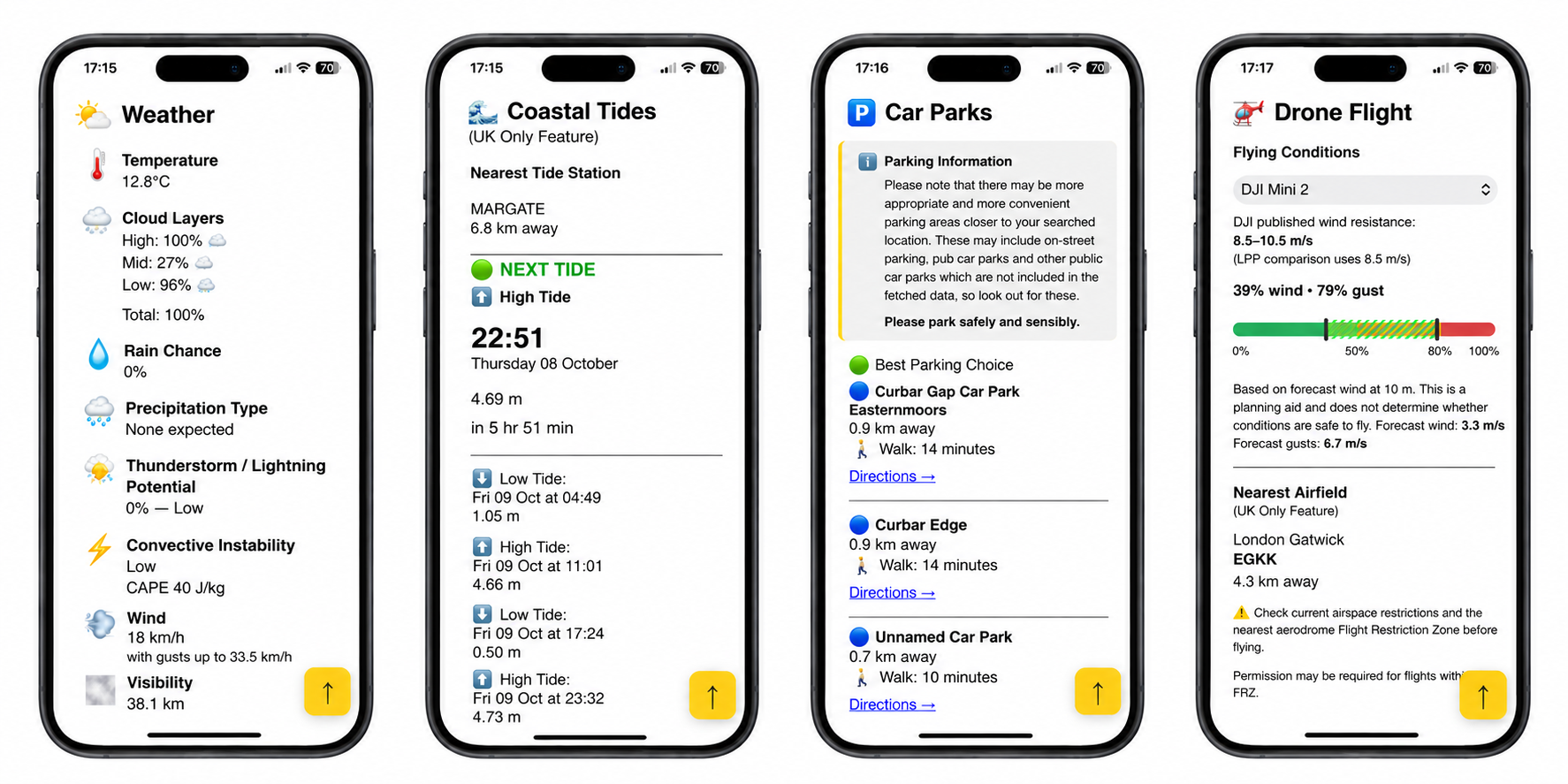
The weather panel shows conditions as you would expect, including temperature, low/mid/high cloud layers, total cloud, rain chance in percentage, type of precipitation, potential for thunderstorms and lightning, convective instability, wind speed and visibility.
Seasonal Events
This panel shows some useful seasonal events together with useful and appropriate shooting tips. Events include, but are not limited to: bluebells, heather, sunflowers, autumn colours and the Milky Way galaxy core. These events appear and change automatically depending on the week of the year and are intended as a reminder to the user to consider including them in or as part of potential compositions.
Coastal Tides
Tide information is shown in the Coastal Tides panel. Data is taken from a UK tidal resource and therefore data is only available for the UK coastal tides. The nearest tidal station and therefore the source of the tidal data is shown. The details of the next high or low tide is shown with the time, date and height. Note that the time to next tide is shown as the time from the searched time, not the device’s current time - this is to assist in planning and in-the-field information.
Further subsequent useful tide dates, times and heights are listed below.
The coastal tides features is only available for tide information around the United Kingdom at this time.
Car Parks
The map data is analysed and presents a number of available car parks in the Car Parks panel and on the map. The map shows several car parks - the suggested or recommended car park is illustrated in green whilst the others are blue. The panel displays a list of the car parks found around the searched location with the recommended one at the top of the list.
The car parks are assessed in the background to determine their suitability and are listed accordingly to include distance and walking time from the car park to the searched location. A link to Google Maps may also provide satellite navigation from your present location to the car park of choice.
Please note that a limitation of car park map data may mean that there is closer, more suitable, more appropriate car parking to your searched location, eg. free-of-charge or paid-for on-street parking. Also note that some car parking data may occasionally be erroneous or inaccurate which, unfortunately, is a limitation of the map data provider.
Drone Flight
Wind speed is a consideration when flying a drone and so this panel provides a clear and concise wind speed gauge to show if the conditions are satisfactory to fly your particular model of drone (limited to DJI models only). Simply select your drone model from the drop down selection to calibrate the panel to your drone specifications. LPP will remember the model of your drone once selected.
LPP highly recommends to always check resources such as the Drone Assist app for the legality of your flight and your surrounding area. In the event of being near an airfield, this panel provides some basic information for nearby airfields if authorisation to fly is required. If available, telephone contact details, web link or email link for relevant Air Traffic Control service are shown.
The drone flying feature is only available for FRZ and airfield information around the United Kingdom.
Nearby Amenities
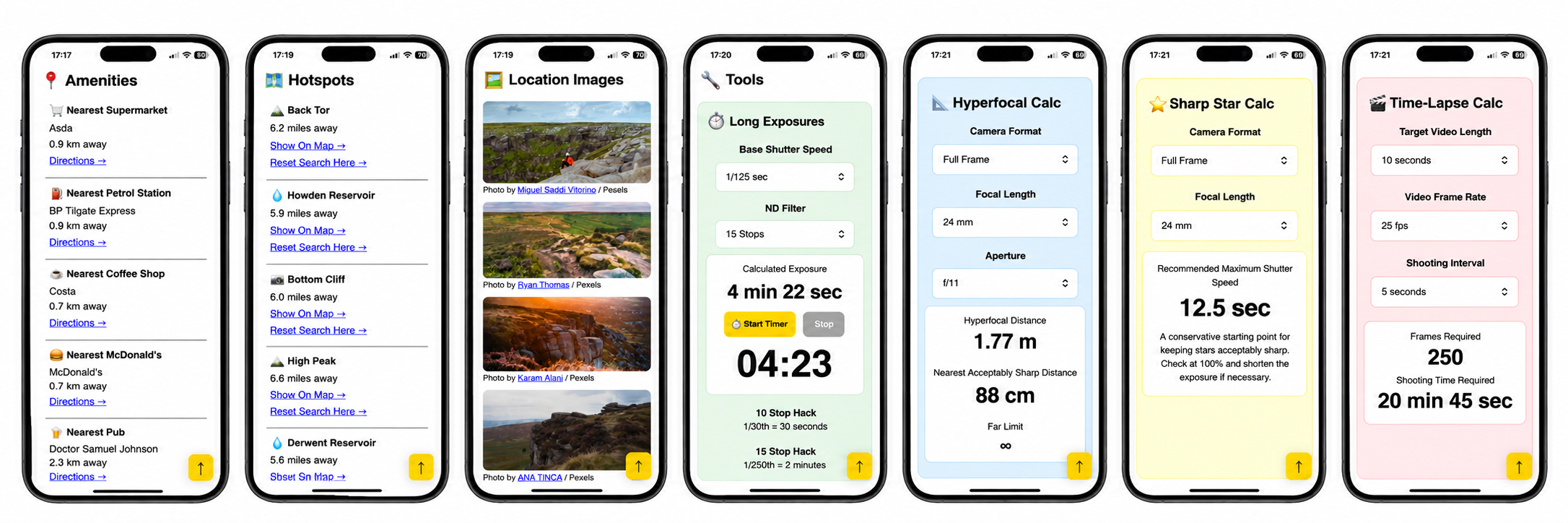
The search of the map database also presents several amenities close to your searched location which may be useful to the landscape photographer out in the field. The amenities shown include but are not limited to supermarkets, petrol stations, coffee shops, McDonald’s, public toilets, pubs and pharmacies. These categories have been added to the map amenities search to give the user a choice of food, drink, toilets and emergency provisions. Whilst public toilets may not be open 24 hours, it’s useful to know that many out-of-town McDonald’s are available 24 hours, as are some larger supermarkets.
Hotspots
A panel that lists some nearby places of interest or photography hotspots which may be useful to photograph or consider including as part of your composition. Places including natural features, such as hills, mountains, lakes and waterfalls within a range of up to 40km are included, along with man-made subjects such as windmills and lighthouses. These can be highlighted on the map with a red ring, or the whole search can be reset to that location.
Photos
The image panel shows ten images of the searched location. This should be interpreted to act as inspiration for the searched location. It is recommended not to copy or attempt to reproduce such images. The intention of this panel is simply provide the user an idea of what to expect upon arrival on location, in terms of geography, environment and view.
Toolbox
LPP includes four useful exposure calculators for photographers to use in the field:
Long Exposure Calculator - green box - for determining the correct shutter speed when using a range of Neutral Density filters. ND filter selection includes densities of 1, 2, 3, 4, 5, 6, 10, 15 and 16 stops. A timer is included to assist with the length of exposure and provides an audio and visual alert for the end of the exposure if using manual bulb mode.
Hyperfocal Distance Calculator - blue box - a traditional and accurate way of ensuring foreground to background sharpness in images. The calculator considers sensor format, focal length and aperture and determines the hyperfocal distance for those settings. Focusing at the hyperfocal distance shown will provide acceptable sharpness from half that distance to infinity.
Sharp Stars Astro Calculator - yellow box - this simple calculator provided the maximum shutter speed a photographer should use given the sensor format and focal length to ensure stars in the night sky are acceptably sharp. This calculator favours the more conservative 300 rule over the more common and traditional 500 rule to take into account modern hi resolution mirrorless 35mm and medium format sensors.
Time-Lapse Calculator - red box - another simple but useful calculator which can be used to determine the settings required for a given frame rate and desired video length.
PLEASE NOTE
Searched locations are handled by an external source, and as such, if a searched location or amenity is not listed, unfortunately it is beyond the scope of Landscape Planner Pro. Likewise, weather information is handled by an external source and the analytics which LPP provides is dependent on the accuracy of that source. If the weather forecast is inaccurate and the data presented by the app is also inaccurate then it is unfortunately beyond the scope of Landscape Planner Pro. Landscape Planner Pro can only be as good as the accuracy of the information it gathers from these external sources. Landscape Planner Pro attempts to use the best available data sources to provide the most accurate results and data for the user. Unfortunately, nothing, especially weather forecasts are completely accurate all of the time. Please take this into account when using Landscape Planner Pro, and if necessary, check with other sources of information before totally and solely relying on it. Thank you for your understanding.